Get the DataDoc app
Install DataDoc, or update to the latest version.
Loading…
How the install goes
DataDoc installs from this page rather than the Play Store, so Android shows a few security prompts along the way. All of them are expected.
- 1
Download
Tap Download DataDoc.apk above. If Chrome warns that this type of file can harm your device, tap Download anyway or Keep.
- 2
Install
Open the file from your notifications or the Downloads app. Android blocks it once and offers Settings - tap that, turn on Allow from this source, go back, and tap the file again.
Then you'll see one of these two screens - both are normal
“App blocked” / “Unsafe app blocked”
Play Protect blocking a non-Play-Store app. Tap More details if needed, then Install anyway.
A scan or “app is safe” message
Play Protect scanned it and is happy. Just carry on and tap Install.
- 3
Open and set up
Open DataDoc, sign up, and enter your participant code when asked. Then connect Device (app-usage) and, if you wish, Health.
When you turn on Usage Access, one of two things happens
The toggle turns on
Nothing more to do - you're set up.
The toggle won't stay on
Android is blocking it. Go to Settings → Apps → DataDoc, tap the ⋮ menu, choose Allow restricted settings, then try the toggle again.
Stuck? See every screen, one by one
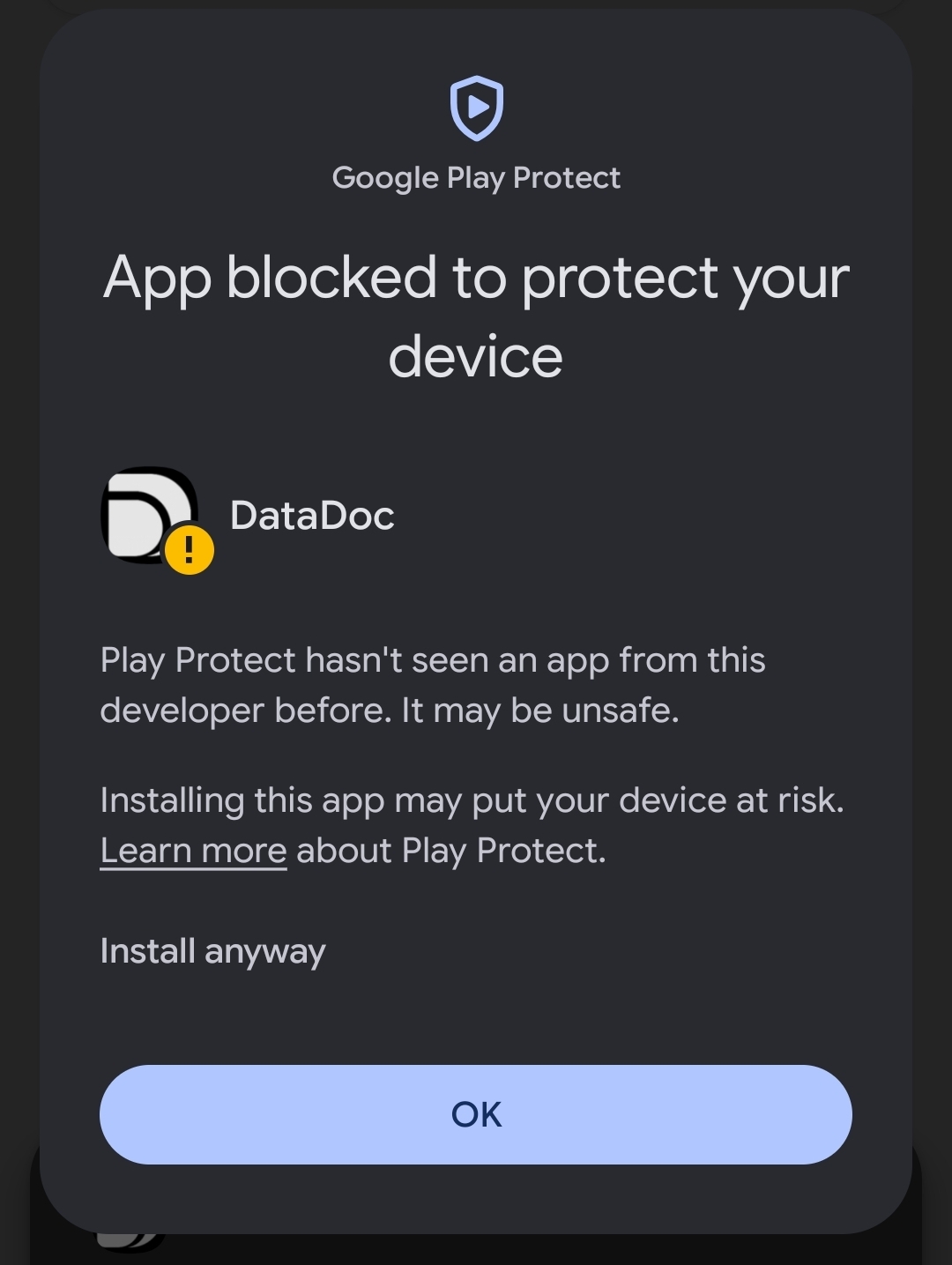
Play Protect checks the app
Depending on your Android version you'll see ONE of two screens here, and both are normal. Either Play Protect blocks it ("App blocked" / "Unsafe app blocked") - tap More details, then Install anyway, then OK. Or it scans the app and tells you it looks safe - in which case just carry on and tap Install. Neither screen means anything is wrong: this is what Android does for any app installed outside the Play Store.
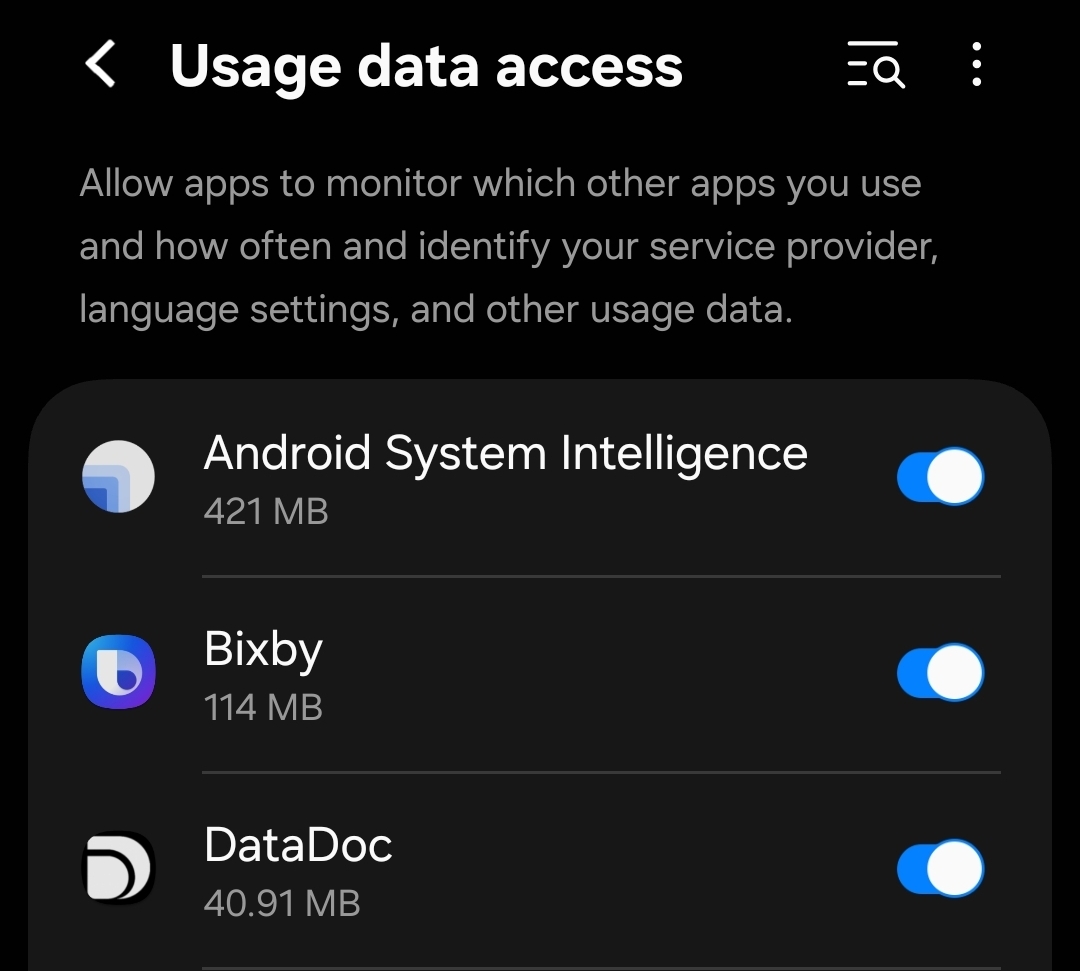
First look at Usage Access
After install, Android's Usage Data Access list (Settings → Apps → Special app access → Usage access) will start showing DataDoc alongside other apps already on your phone - you don't need to do anything here yet.
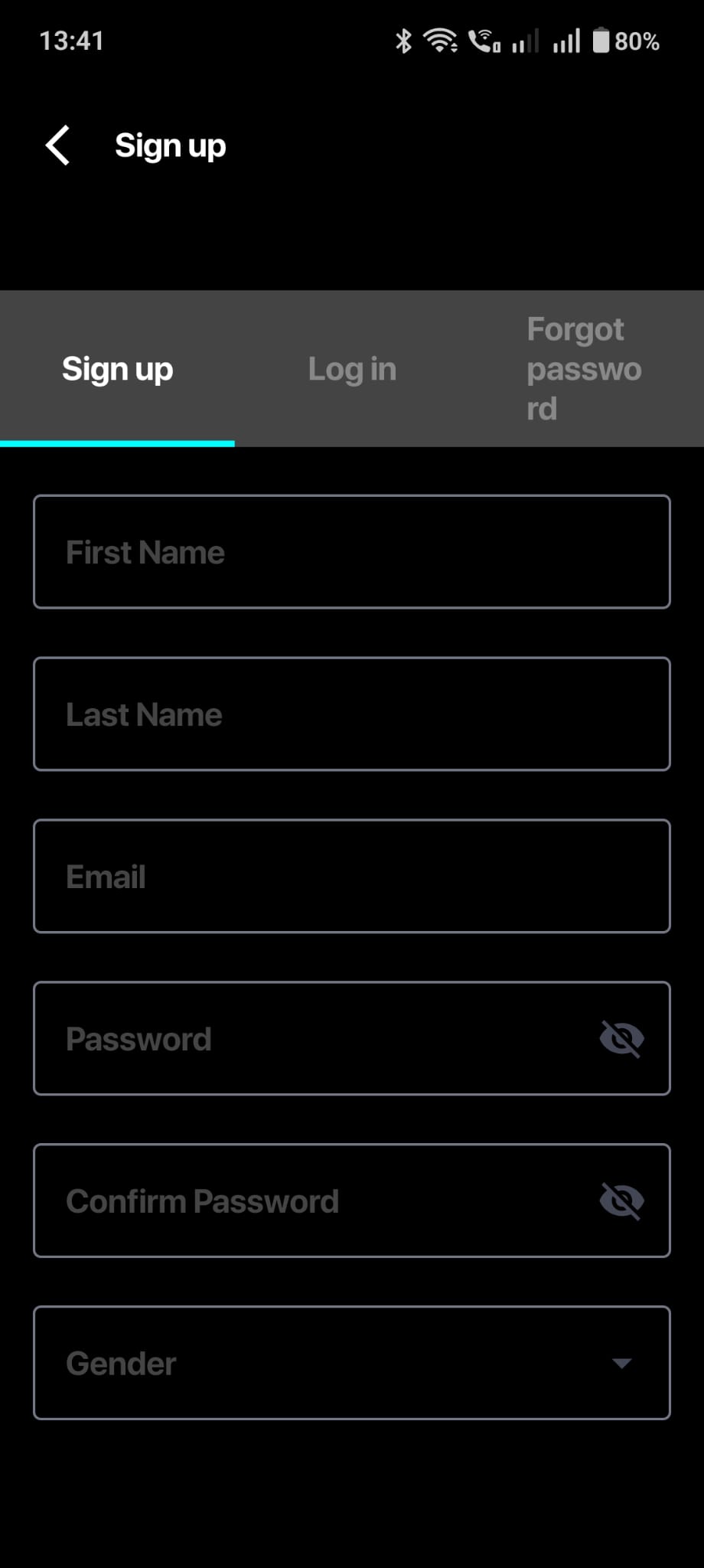
Open the app and sign up
Open DataDoc and create an account: first name, last name, email, password, gender. Use the Log in tab instead if you've already signed up on this device before.
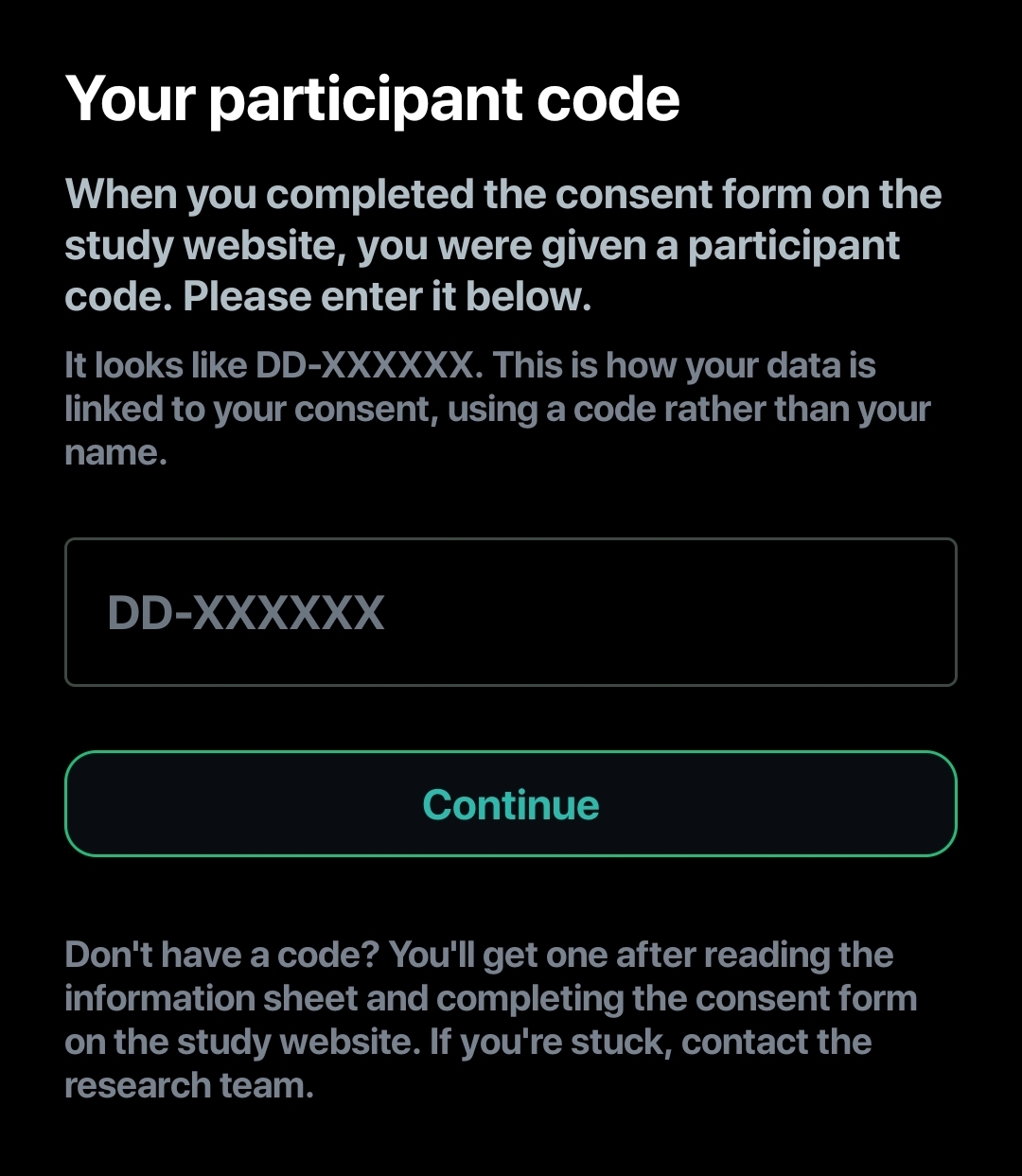
Enter your participant code
DataDoc asks for the code from step 1 (format DD-XXXXXX). This is what links your in-app data to your consent record without using your name.
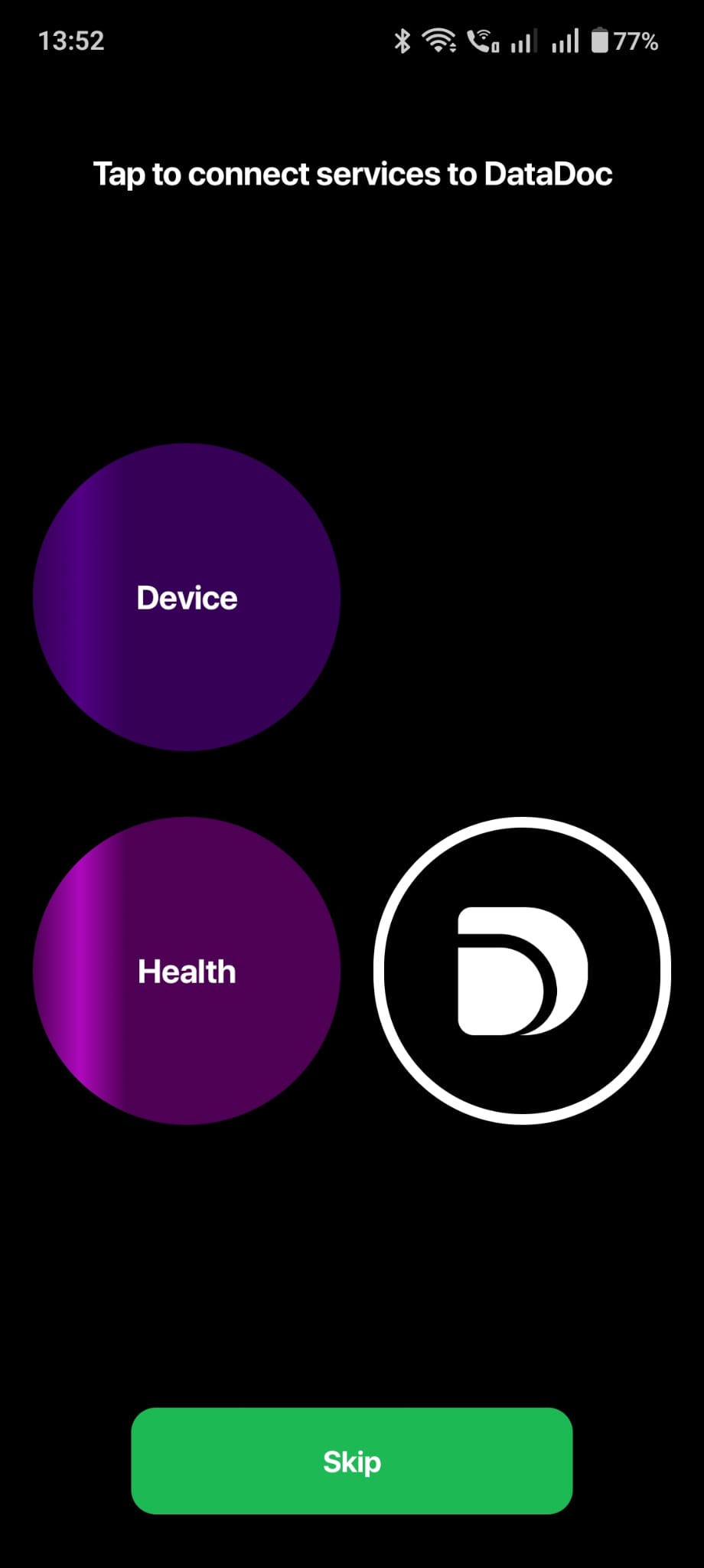
Choose which services to connect
DataDoc asks to connect two things: Device (screen-time / app-usage tracking) and Health (fitness and wellness data). Tap Device first - Skip is available but the study needs both connected to work.
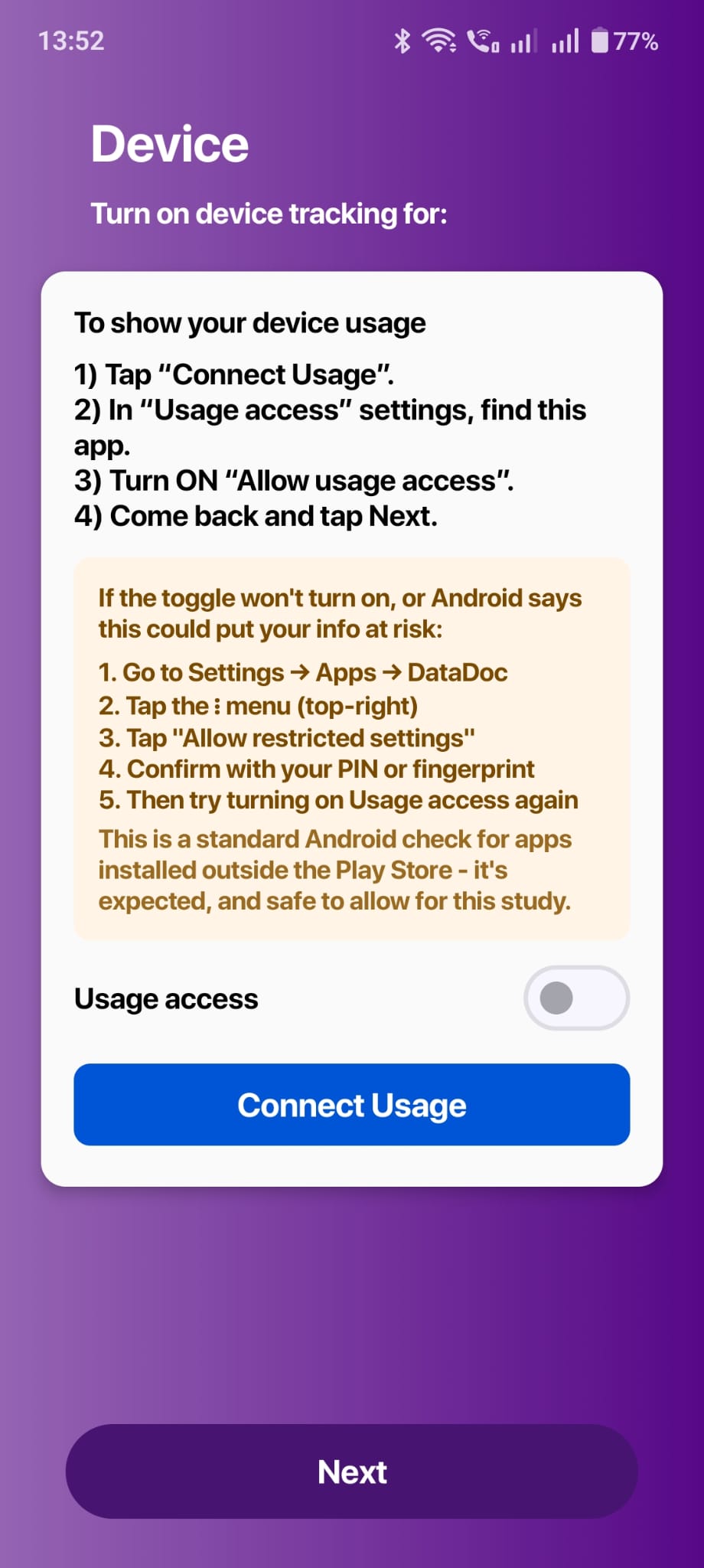
Tap "Connect Usage"
On the Device screen, tap Connect Usage. This is where Android's Usage Access permission screen opens - the orange box on this screen already warns you that the toggle may not turn on immediately (see the next steps).
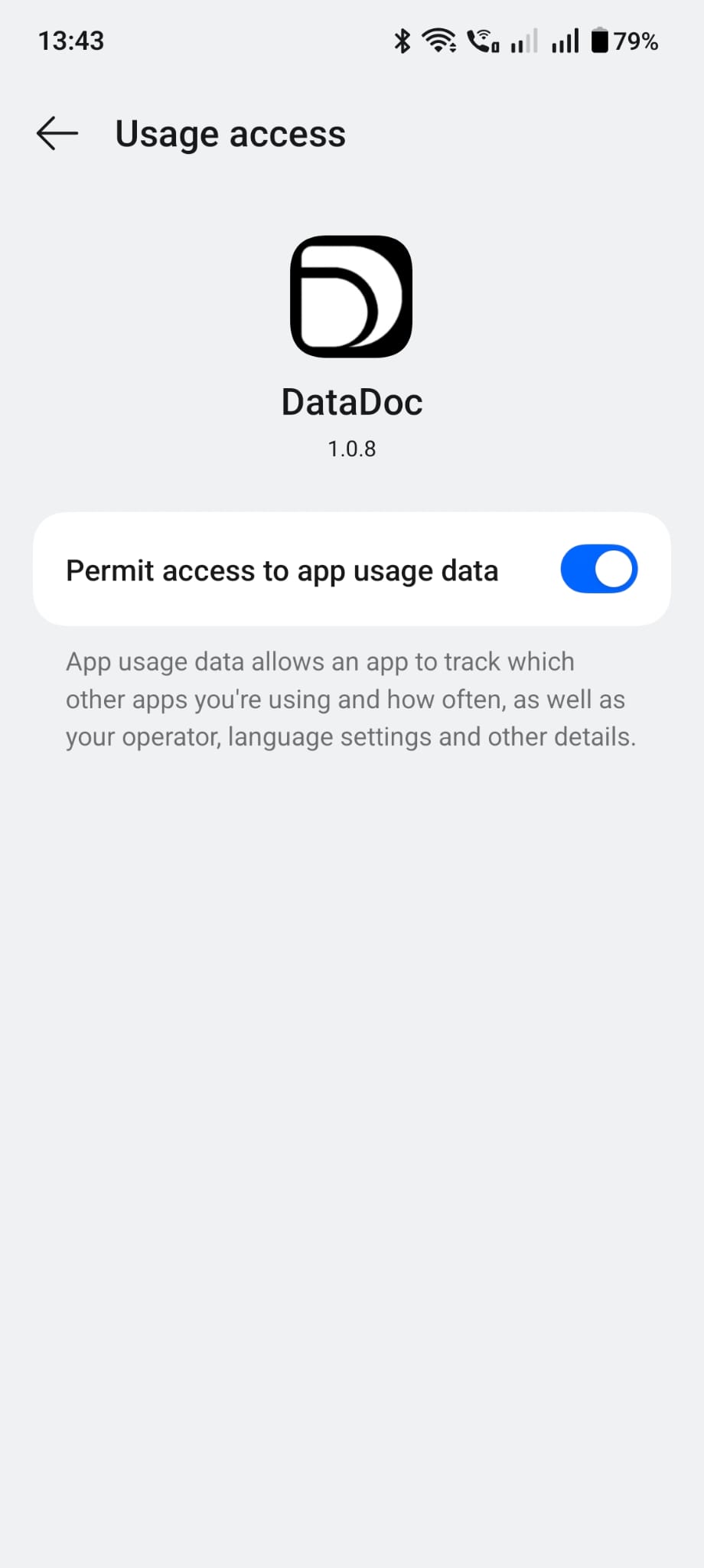
Turn Usage Access on, then allow Health data
In Usage Access → DataDoc, turn the toggle on. (If it won't stay on, see the amber section below first.) Back in the app, tap Next, and when Android asks to allow DataDoc access to fitness and wellness data, tap Allow (or Allow all).
Only if Usage Access won't turn on
Many phones never show these screens. If your Usage Access toggle turned on normally, you are already done and can ignore this section - it is not a step you have missed.
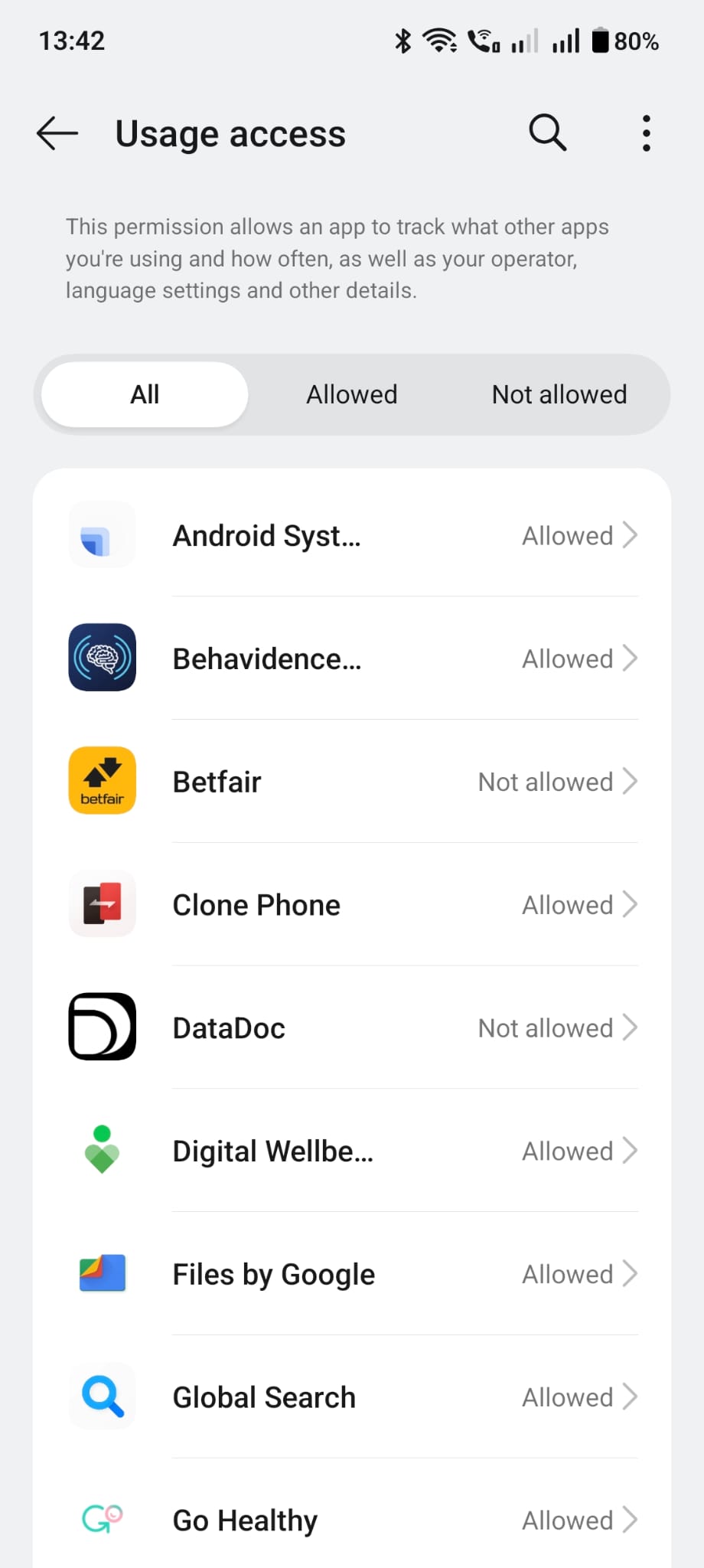
DataDoc shows as "Not allowed"
Android opens its full Usage Access list (All / Allowed / Not allowed tabs). DataDoc shows as Not allowed here, same as every other freshly-installed sideloaded app.
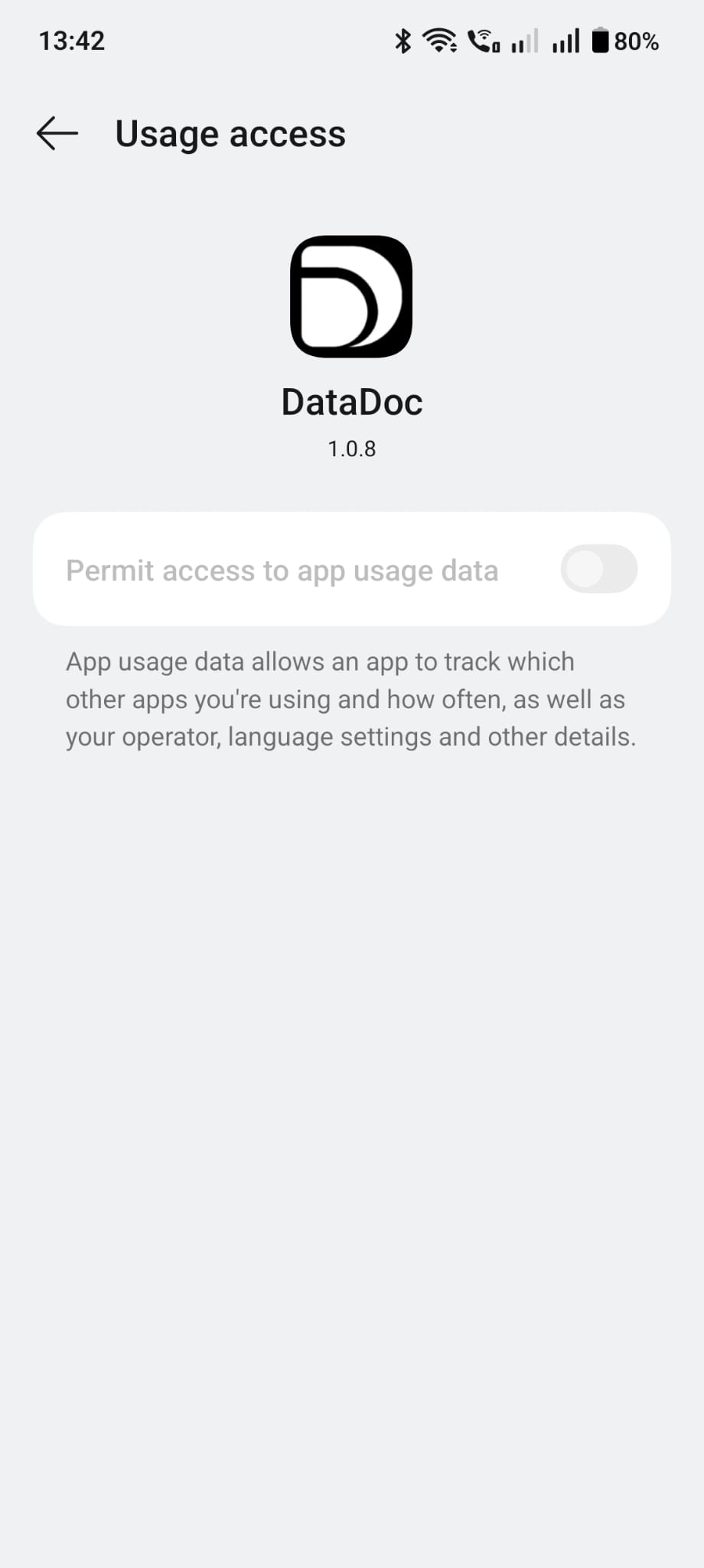
Tapping the toggle does nothing yet
Tap DataDoc in that list to reach its dedicated "Permit access to app usage data" toggle. Tapping it at this point does not turn it on - Android is silently blocking it, which is the actual problem this whole flow exists to solve.
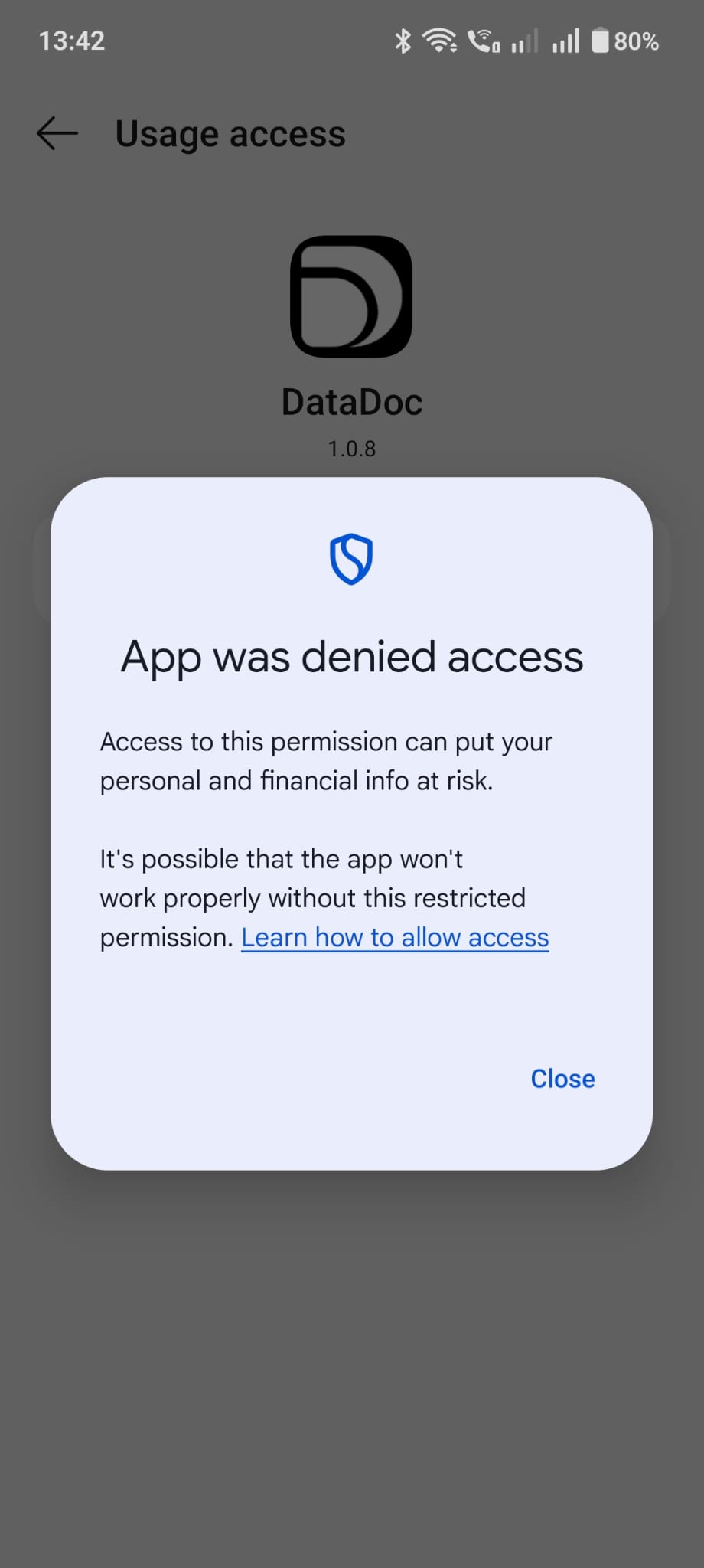
Android confirms it: "App was denied access"
A dialog explicitly says the app was denied access, "to protect your personal and financial info". This is Android's restricted settings protection for any app installed outside the Play Store - not a DataDoc-specific error.
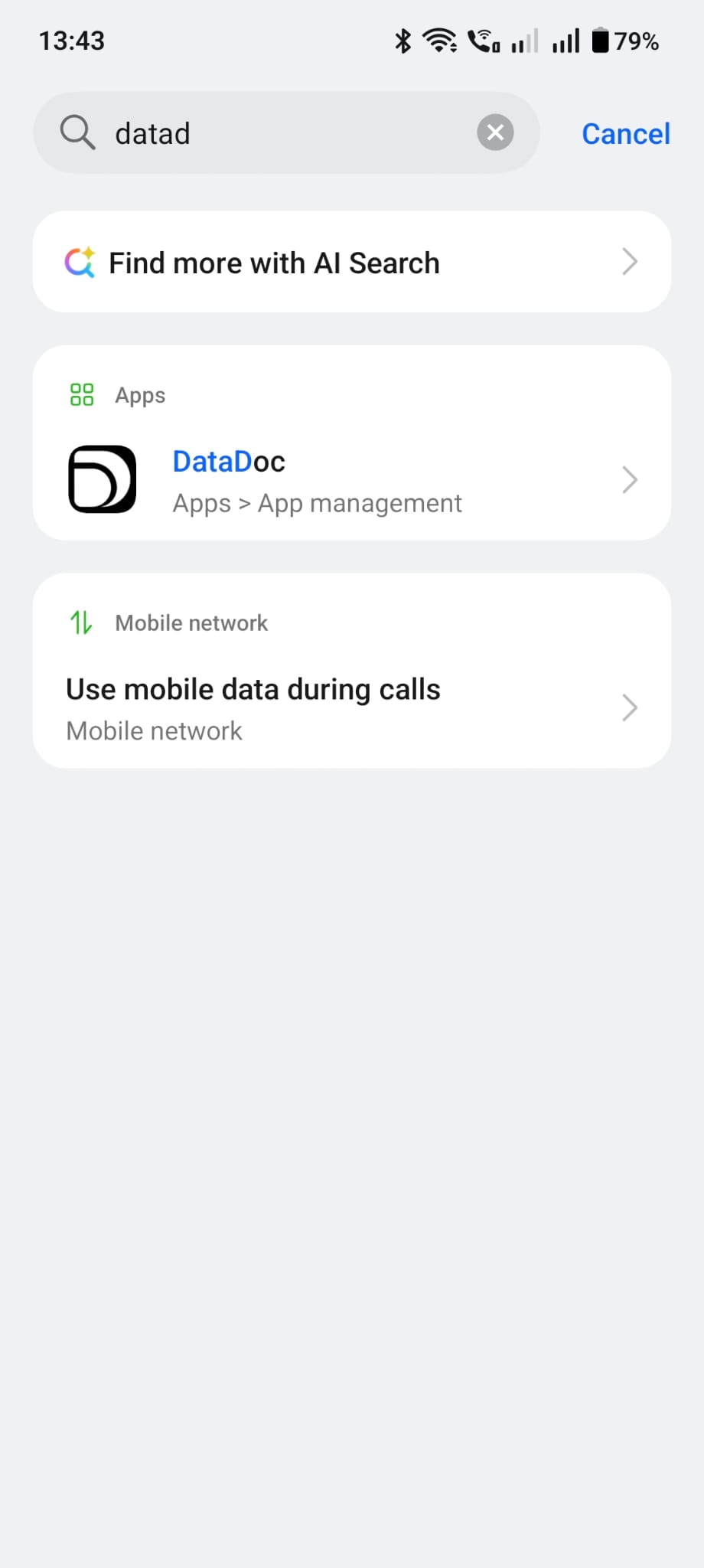
Find DataDoc in Settings directly
Go to your phone's Settings and search "datad" (or browse Apps) to open DataDoc's own App info page - don't go back through Usage Access, go to the app's page directly.
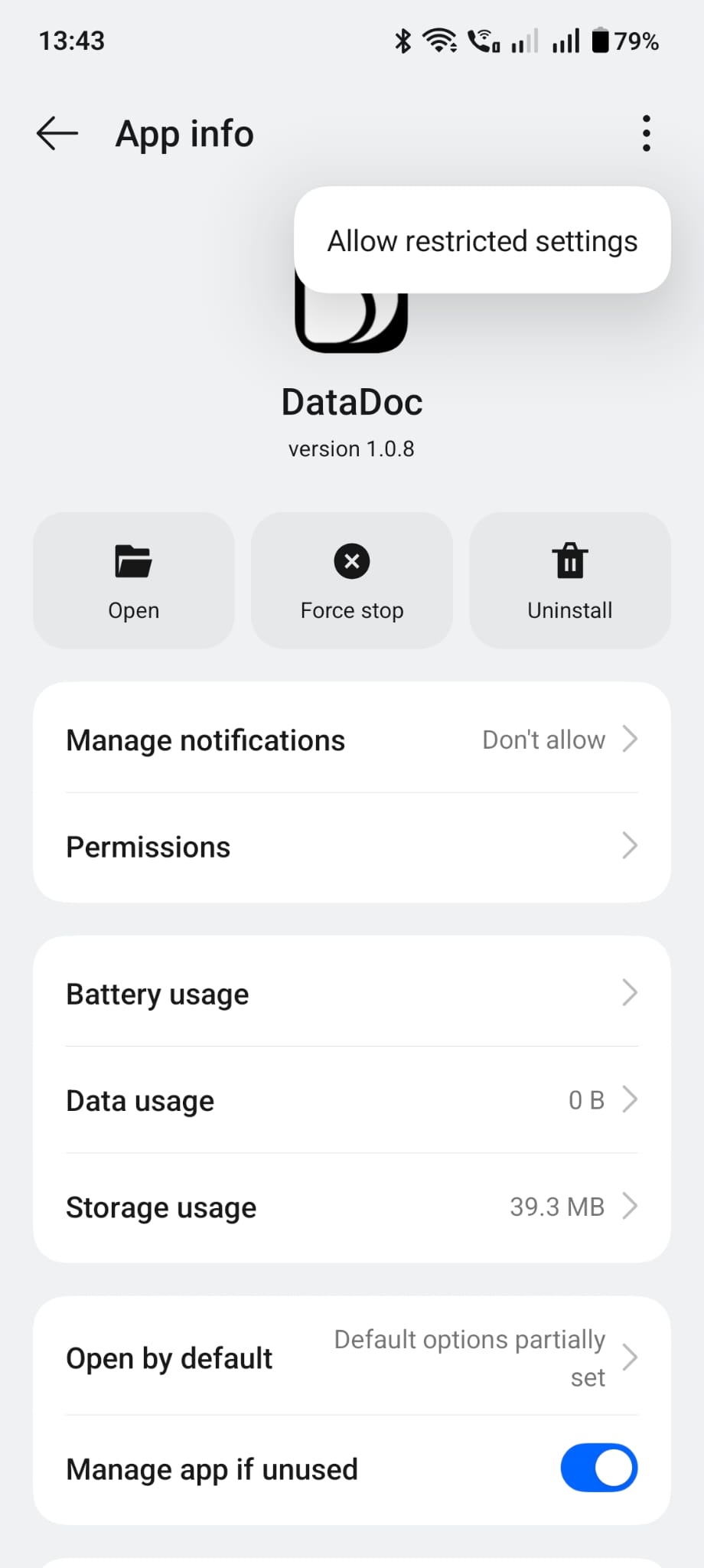
Allow restricted settings
On DataDoc's App info page, tap the ⋮ menu (top-right) and choose "Allow restricted settings". Confirm with your PIN or fingerprint if asked. This is the one step that actually unblocks the permission.